
How to Set Up Drogon TV on Android TV
10 steps with screenshots. You'll need your username, password and server URL — these are issued after checkout and always available in your account dashboard.
IPTV Smarters Pro
- 1
Part 1 — Install Downloader
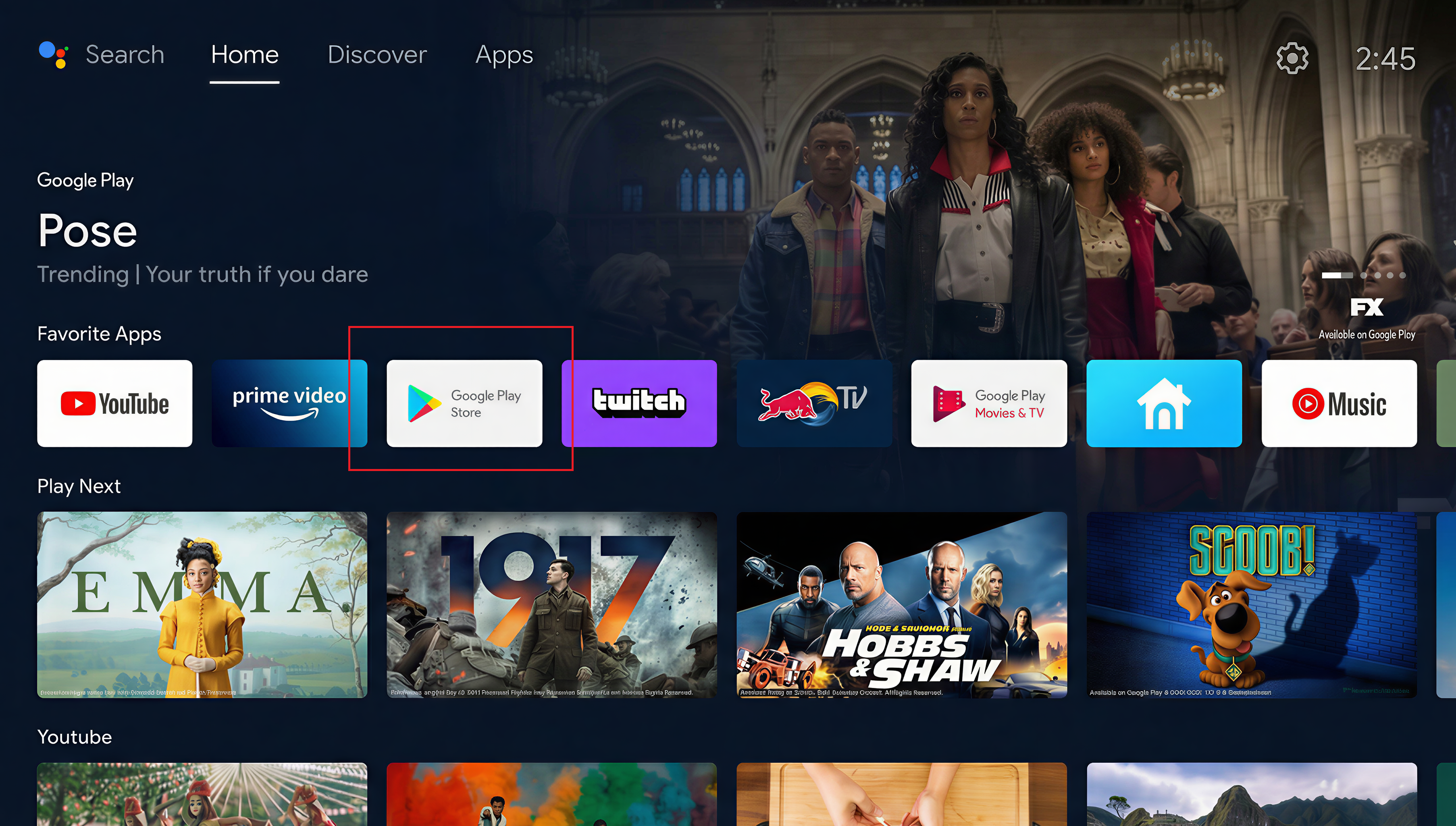
Open the apps menu
This guide covers Android TVs (Sony, Philips, Sharp…) and Chromecast with Google TV. From the Home screen, open the Apps menu or the Play Store.
- 2
Part 1 — Install Downloader
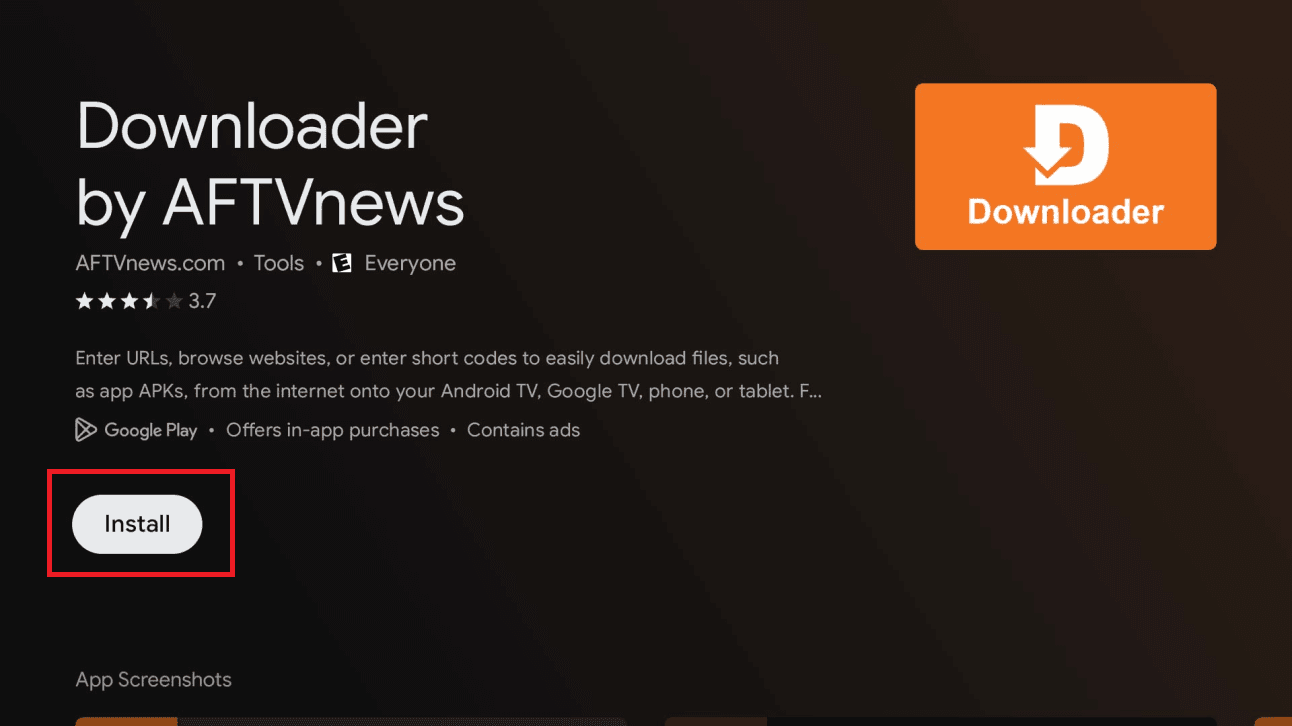
Install the Downloader app
Search for Downloader, open the app's page, then click Install.
- 3
Part 2 — Enable developer mode (once)
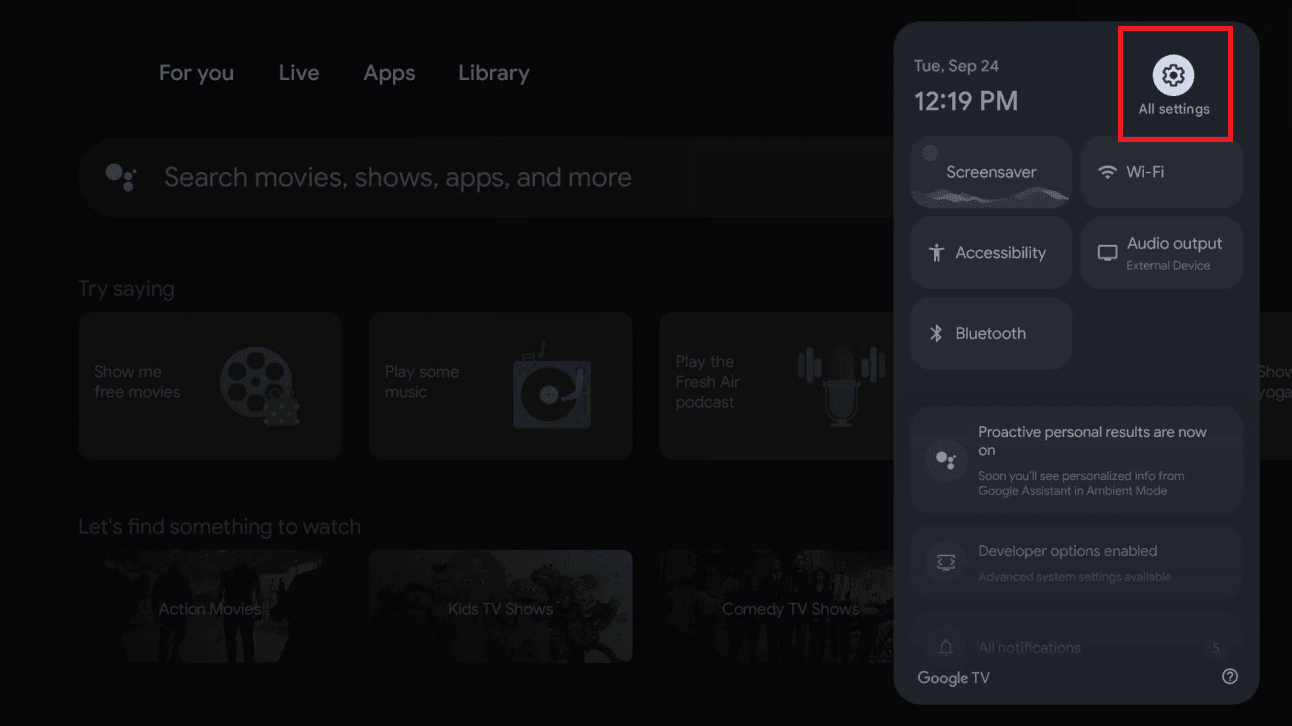
Open All Settings
Open the settings panel (gear icon, top-right) and select All settings.
Tip: This section only needs to be done once — it simply allows Downloader to install apps.
- 4
Part 2 — Enable developer mode (once)
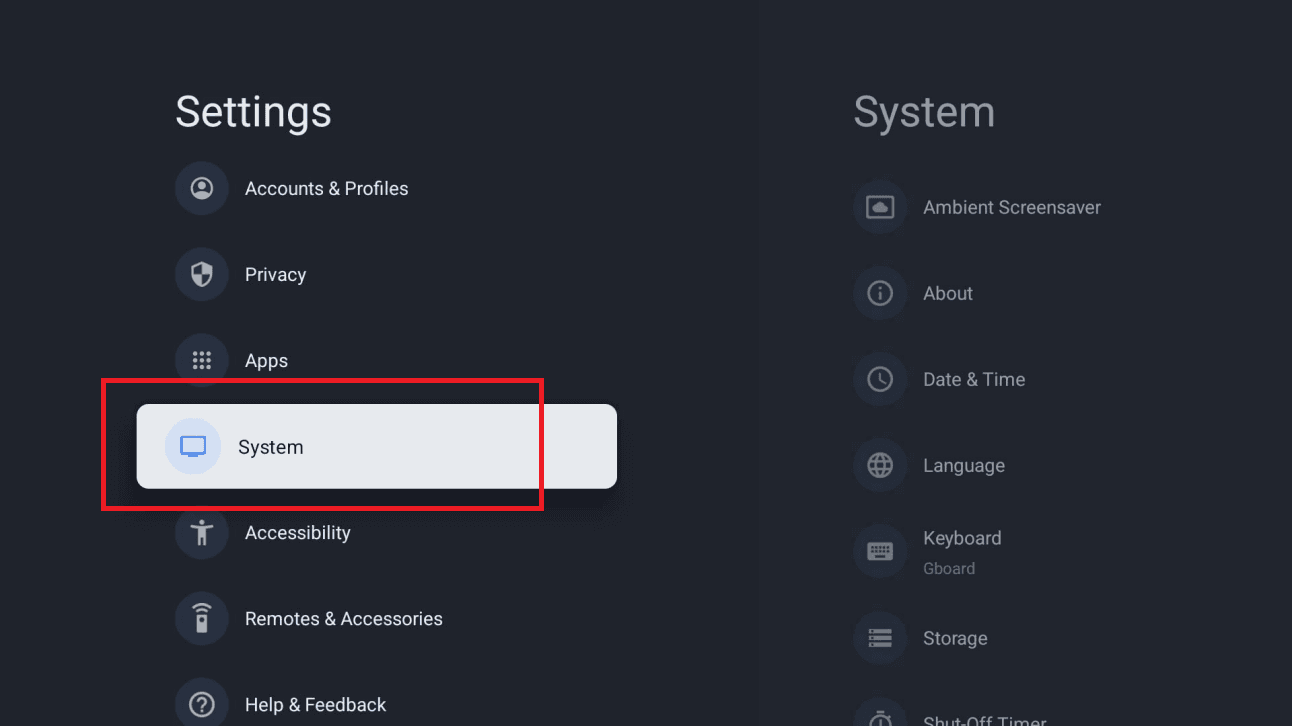
Go to System → About
In Settings, select System, then About.
- 5
Part 2 — Enable developer mode (once)
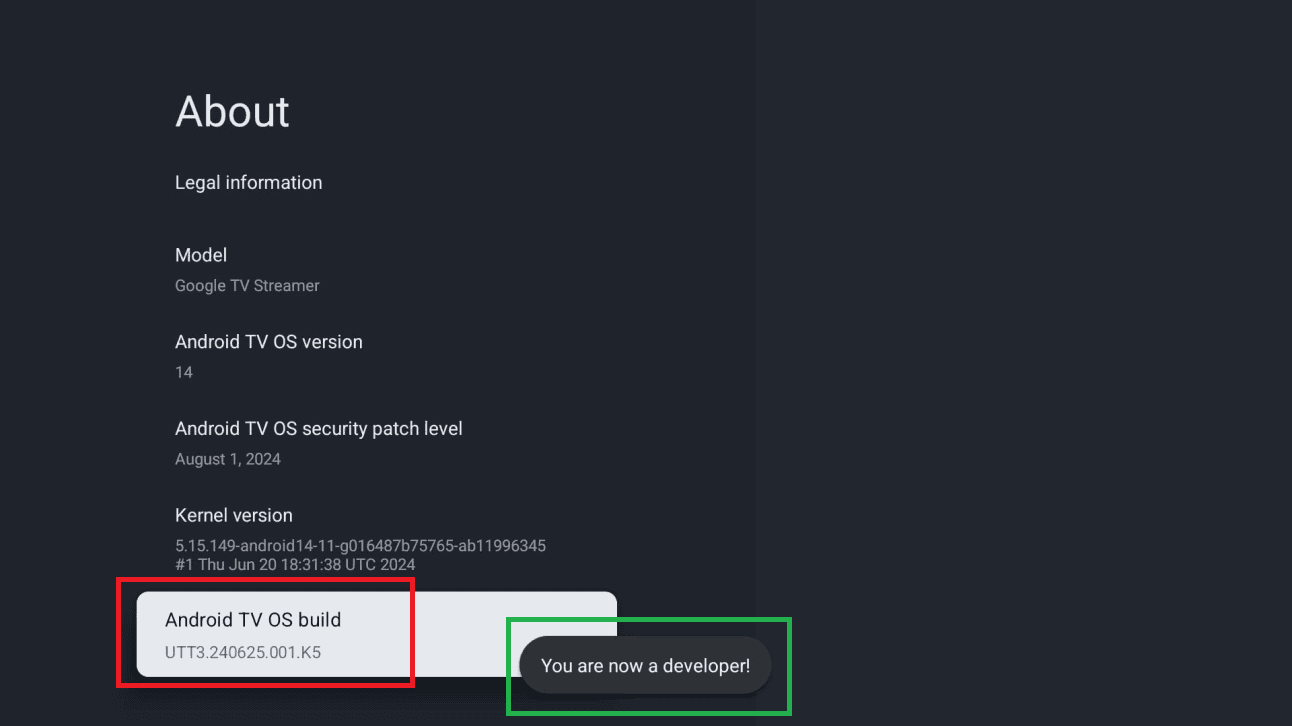
Become a developer
Scroll to Android TV OS build (or Build) and press it 7 times until you see “You are now a developer!”.
- 6
Part 3 — Install IPTV Smarters Pro
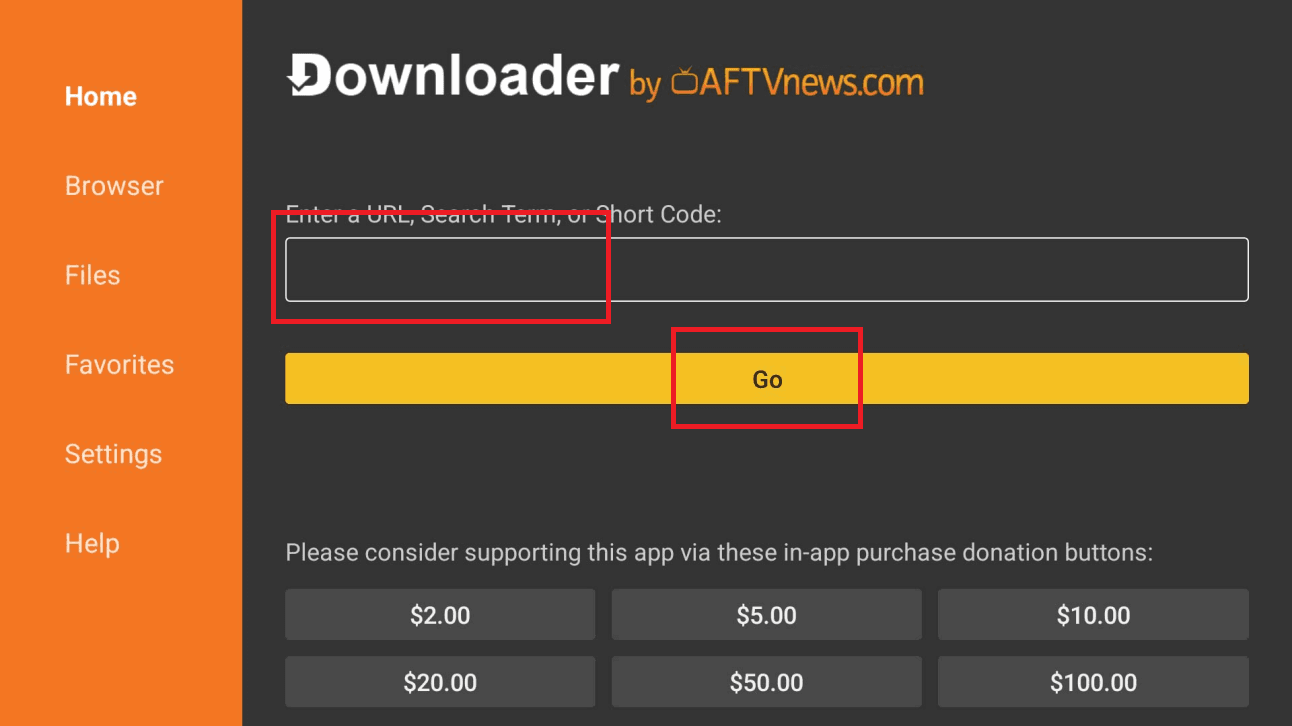
Enter the code in Downloader
Launch Downloader (click Allow then OK if prompted). In the URL field, type the code below exactly and click Go.
6468112
- 7
Part 3 — Install IPTV Smarters Pro
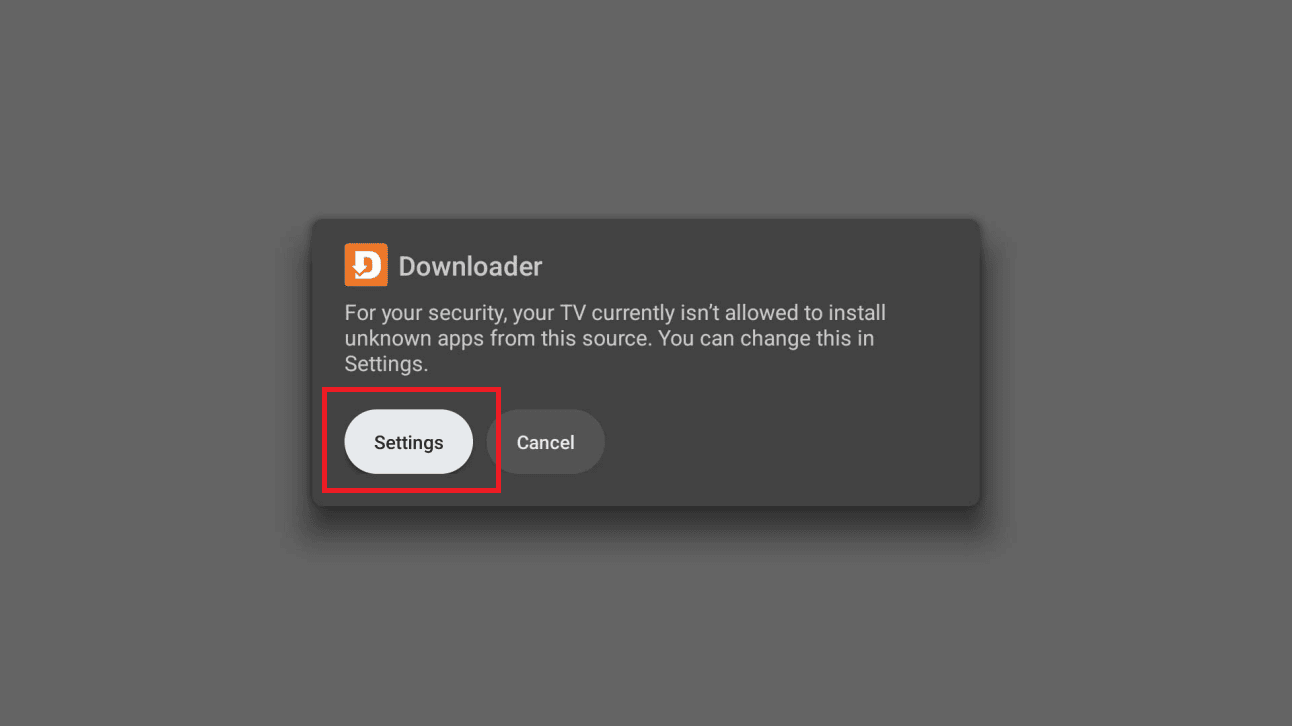
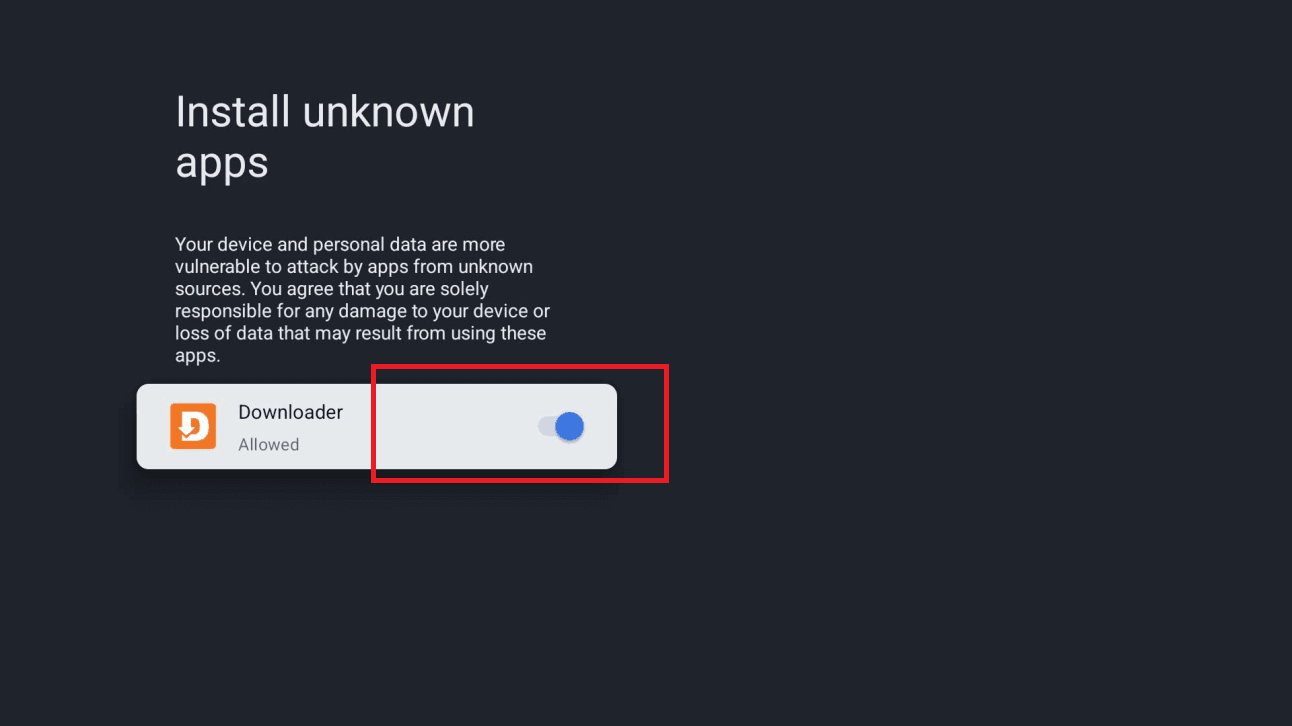
Allow installs from Downloader
A message will say your TV isn't allowed to install unknown apps from this source. Click Settings, turn ON the toggle next to Downloader, then go back.
- 8
Part 3 — Install IPTV Smarters Pro
Install the app
Click Install. If a “Blocked by Play Protect” screen appears, choose Details, then Install anyway. Click Done or Open when it finishes.
- 9
Part 4 — Log in & watch
Open the app & log in
Open IPTV Smarters Pro from your home screen or app drawer, choose Login with Xtream Codes API, then enter your details. You can put anything you like as the playlist name. You'll find your username, password and server URL on your order page in this portal (Subscriptions → your order). They were also sent to you after purchase.
- 10
All set
IPTV Smarters Pro is ready on your Android TV. Your channel list and VOD library are loading — enjoy!
Stuck?
If the app installs but playback stutters, that's usually connection- or device-related rather than a problem with the channel — work through ourbuffering fixes guide. For anything else, contact support.
Setting up a different device? See all setup guides.