
How to Set Up Drogon TV on iPhone / iPad
6 steps with screenshots. You'll need your username, password and server URL — these are issued after checkout and always available in your account dashboard.
Smarters Player Lite
- 1
iOS via Smarters Player Lite
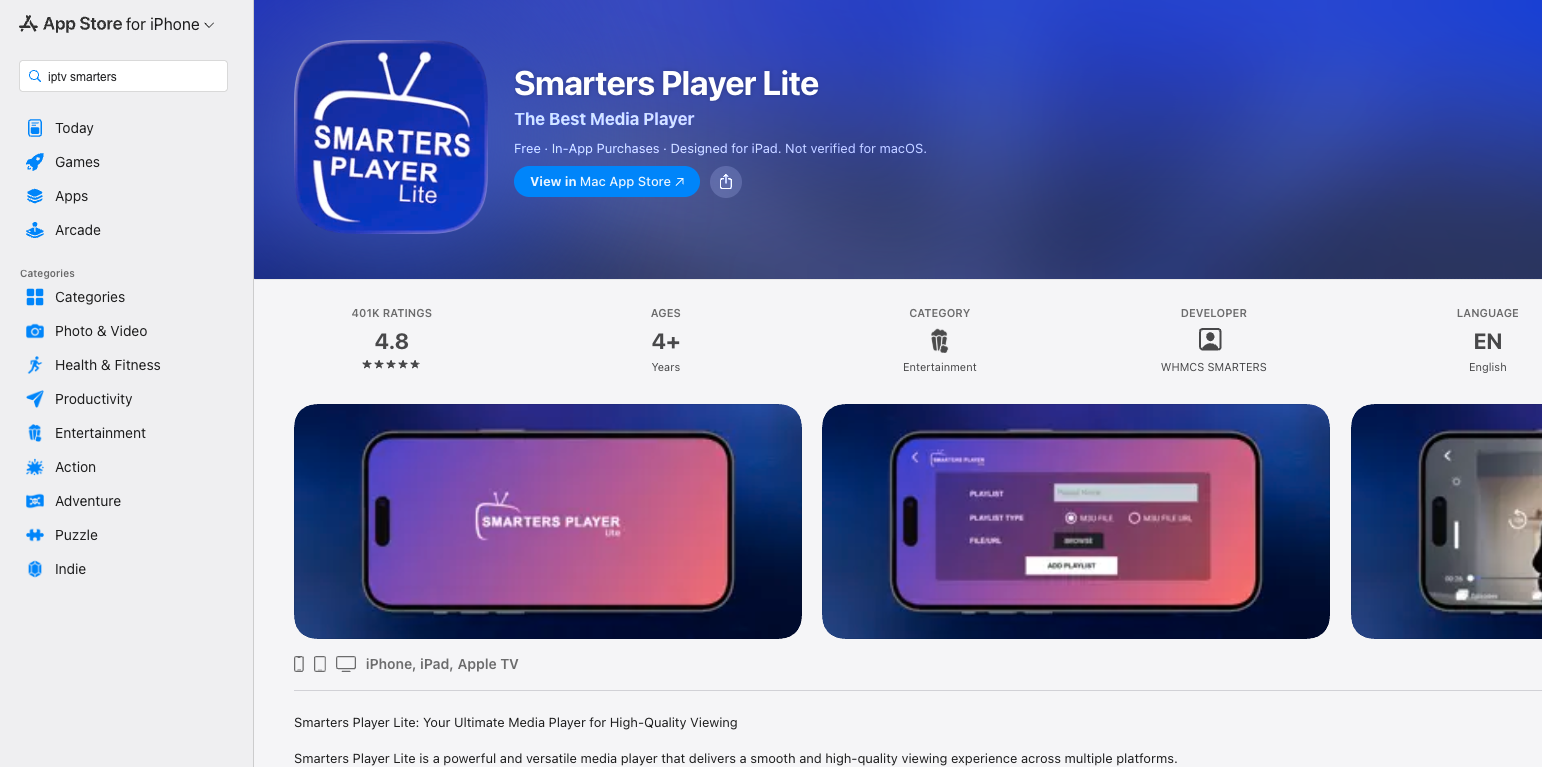
Download from the App Store
Search for IPTV Smarters Player Lite on the App Store, or use the link below, and install it on your iPhone or iPad.
- 2
iOS via Smarters Player Lite
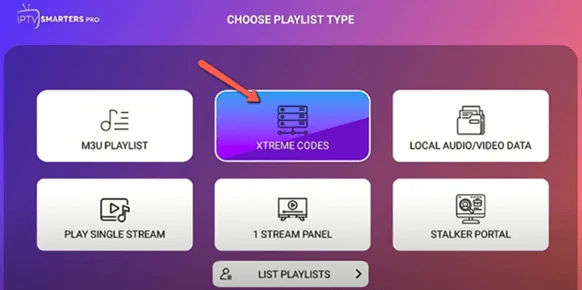
Choose the login method
Launch the app and tap Login with Xtream Codes API on the first screen.
- 3
iOS via Smarters Player Lite
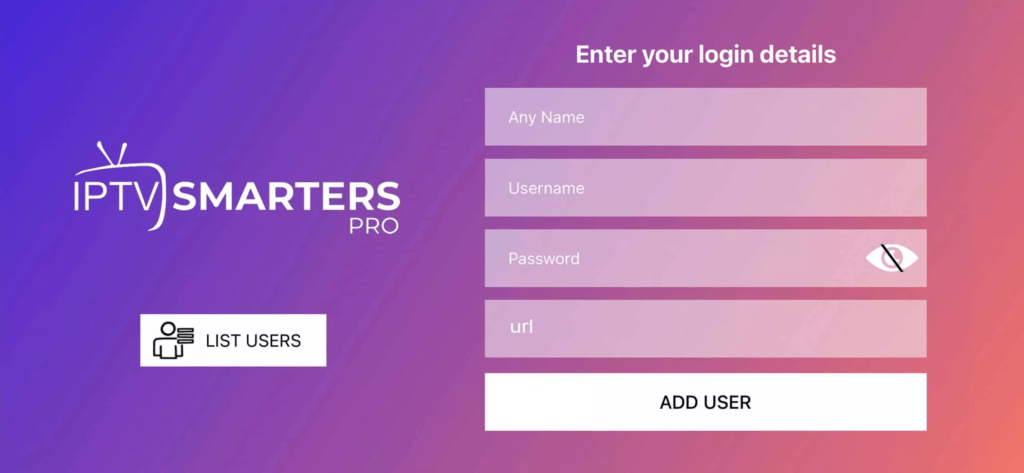
Enter your credentials
Enter Any Name (a nickname for this account) plus your username, password and server URL, then tap ADD USER. You'll find your username, password and server URL on your order page in this portal (Subscriptions → your order). They were also sent to you after purchase.
- 4
iOS via Smarters Player Lite
Wait for channels to sync
The app takes a few seconds to load your channel list and VOD library from the server — this is normal.
- 5
iOS via Smarters Player Lite
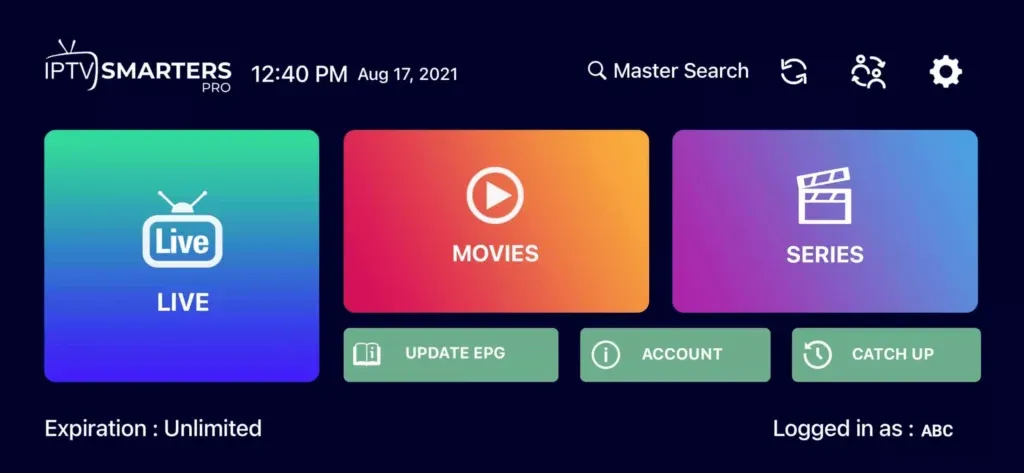
Browse Live TV
Tap the Live TV icon at the bottom, pick a channel group, then tap any channel to play it. Double-tap the preview for full screen.
- 6
Enjoy watching
You're all set on iOS! Tip: for the TV schedule, open the app settings and tap Install EPG — it loads automatically.
Stuck?
If the app installs but playback stutters, that's usually connection- or device-related rather than a problem with the channel — work through ourbuffering fixes guide. For anything else, contact support.
Setting up a different device? See all setup guides.