
How to Set Up Drogon TV on MAG Device
8 steps with screenshots. You'll need your username, password and server URL — these are issued after checkout and always available in your account dashboard.
Built-in portal
- 1
Part A — Network configuration
Power on your MAG device
Turn on your MAG 250, 254 or 256 box and wait for it to fully boot to the home screen.
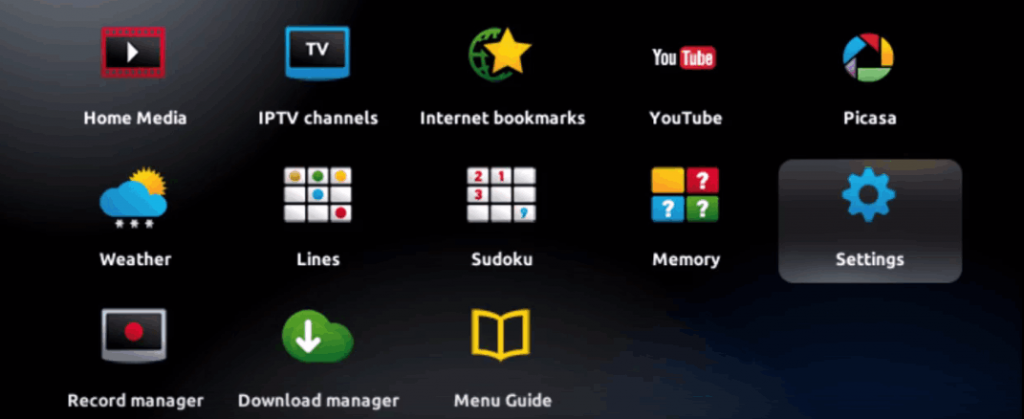
- 2
Part A — Network configuration
Open System Settings
From the MAG home screen, navigate to System Settings.
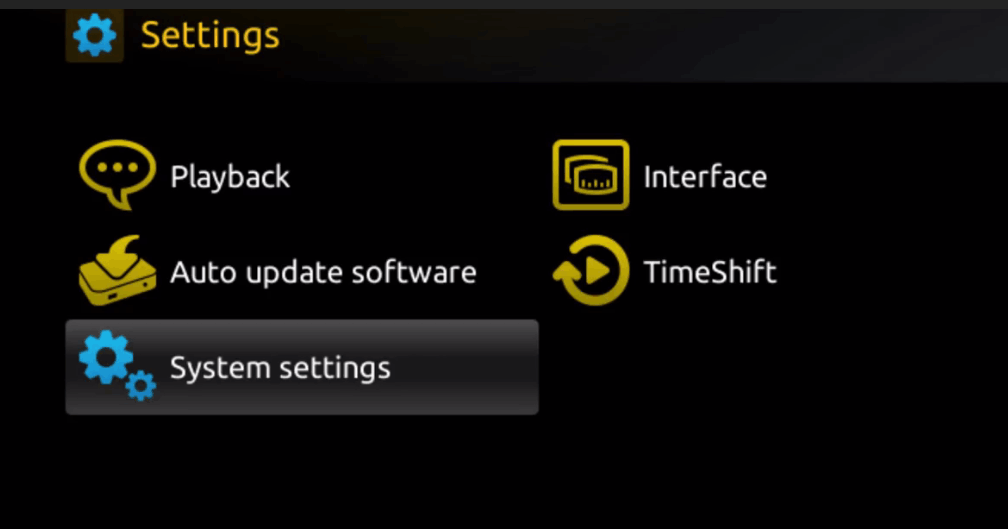
- 3
Part A — Network configuration
Connect to the internet
Go to Network Settings and connect via Ethernet (recommended) or Wi-Fi.
Tip: Ethernet gives a more stable connection for uninterrupted streaming. Use Wi-Fi only if Ethernet isn't available.
- 4
Part A — Network configuration
Find your MAC address
Your MAC address starts with 00:1A:79 — you can also find it on the sticker under the box. Send this MAC to our support to activate your subscription.
Careful: The MAC address is unique to your device and your subscription is linked to it. If you replace the box, contact support.
- 5
Part B — Portal configuration
Navigate to Portals
Go to System Settings → Servers → Portals.
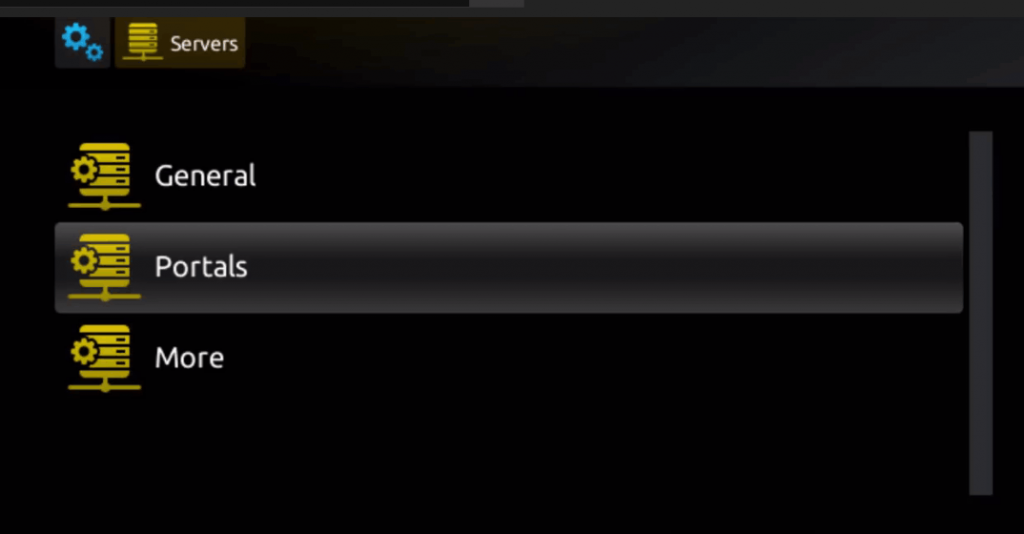
- 6
Part B — Portal configuration
Enter your Portal URL
In Portal 1 Name, enter any name. In Portal 1 URL, enter the Portal URL we provided. Leave Portal 2 blank, then click Save.
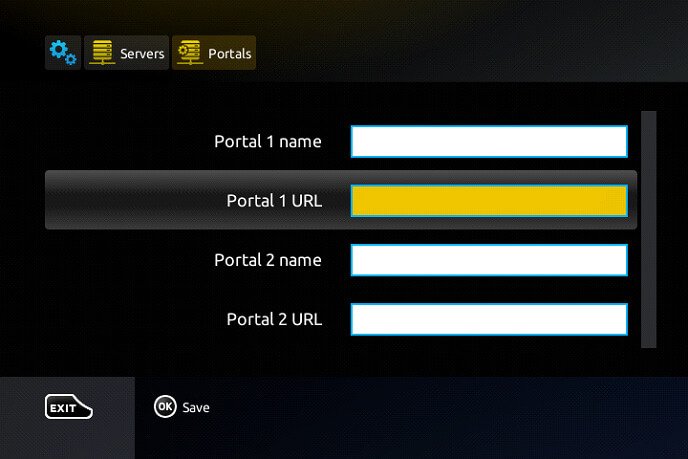
- 7
Part B — Portal configuration
Reset the portal
Go back to System Settings and click Portal Reset. A yellow loading bar appears — wait for it to complete fully.
Tip: If you see an error after entering the portal URL, double-check it for typos and extra spaces.
- 8
Start streaming
Your MAG device is fully configured. All channels and the TV guide are now available — enjoy!
Stuck?
If the app installs but playback stutters, that's usually connection- or device-related rather than a problem with the channel — work through ourbuffering fixes guide. For anything else, contact support.
Setting up a different device? See all setup guides.