
How to Set Up Drogon TV on Roku / TCL
9 steps with screenshots. You'll need your username, password and server URL — these are issued after checkout and always available in your account dashboard.
Ibo Player Pro
- 1
Part 1 — Find the app
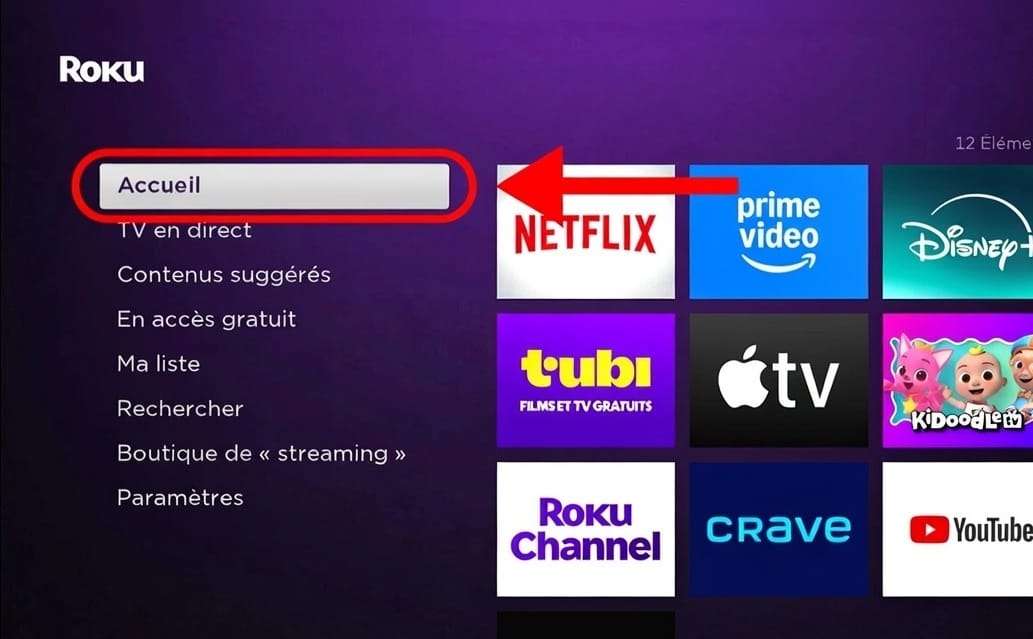
Open the main menu
On your Roku / Hisense / TCL TV, press the Home button on your remote.
- 2
Part 1 — Find the app
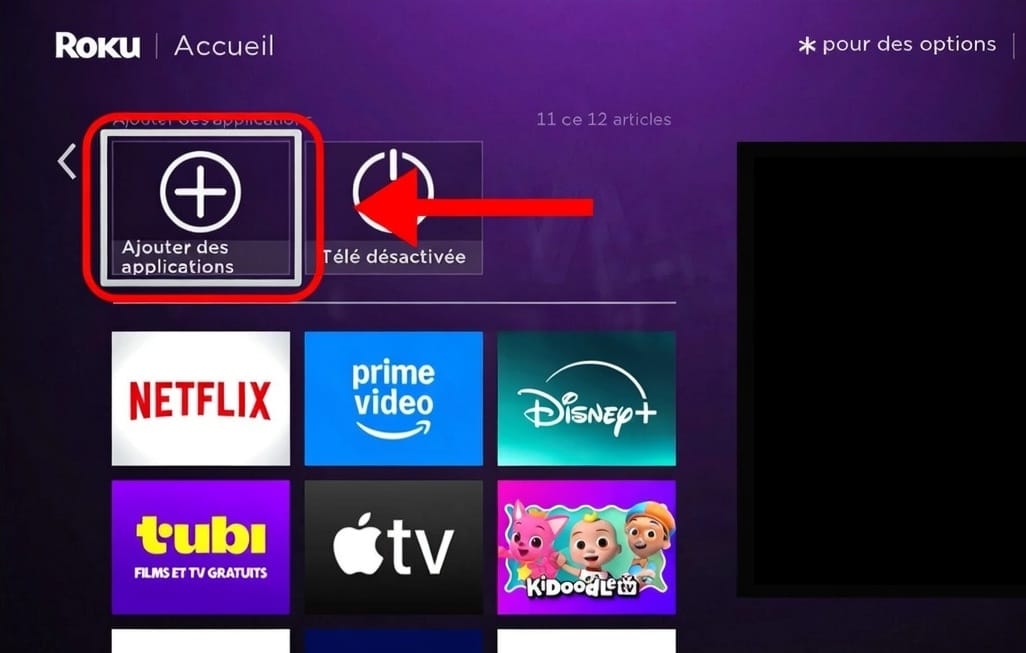
Add channels
On the home screen, scroll right until you find Add channels (the + button) and select it.
- 3
Part 1 — Find the app
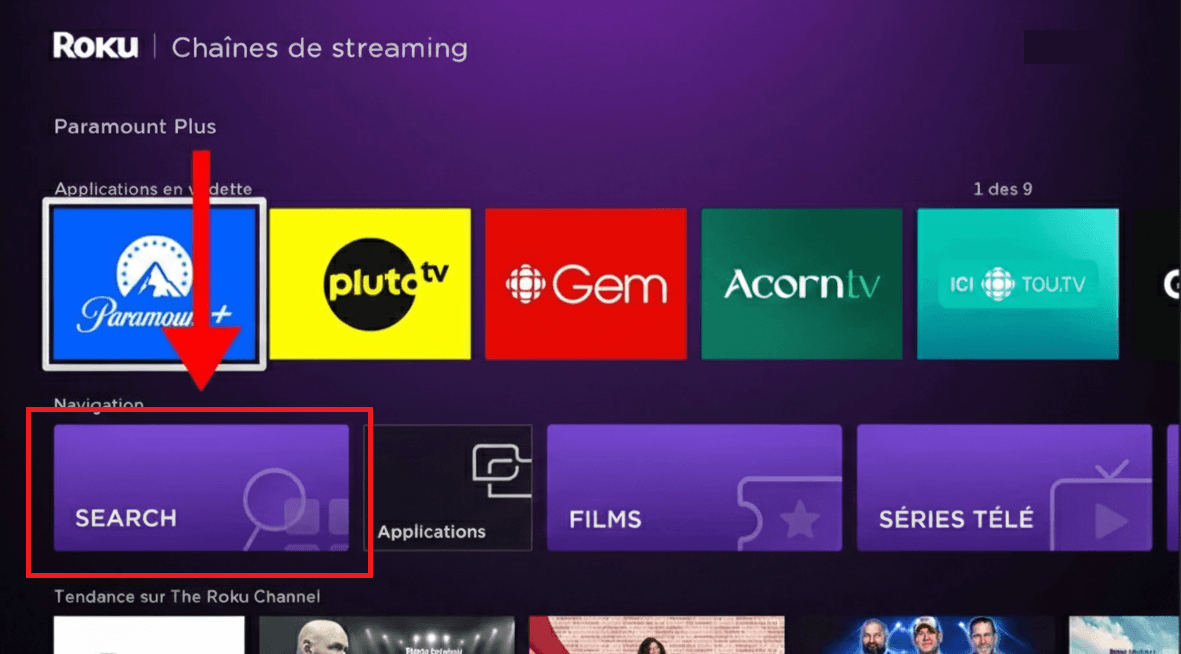
Open Search
On the Streaming Channels page, scroll down to Navigation, then select Search.
- 4
Part 2 — Install Ibo Player Pro
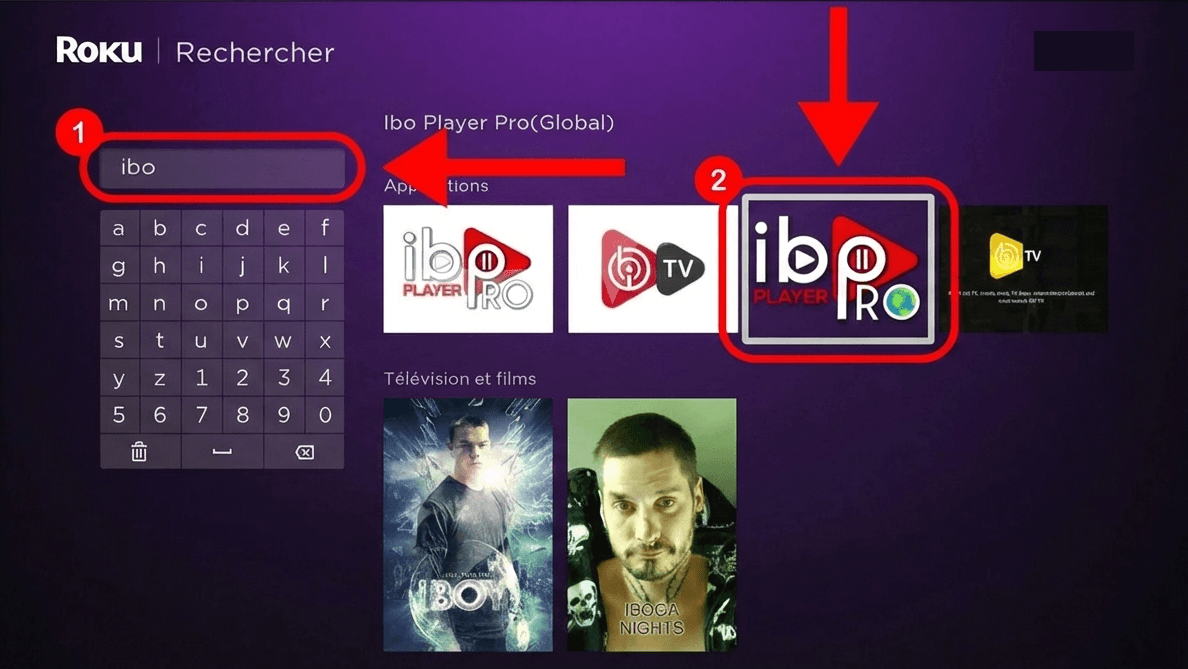
Search for Ibo Player Pro
Type ibo in the search bar. Ibo Player Pro (Global) appears in the results on the right — select it.
- 5
Part 2 — Install Ibo Player Pro
Add the channel
On the app page, click Add channel to start the installation.
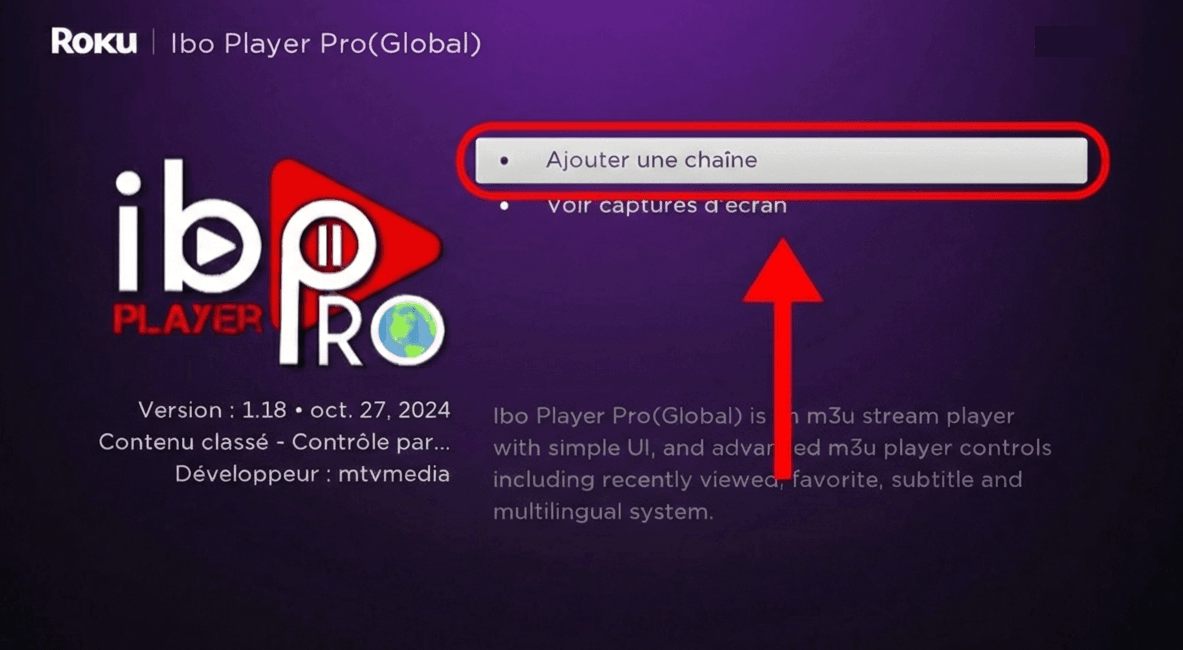
- 6
Part 2 — Install Ibo Player Pro
Accept the terms
A confirmation window appears. Click I agree to allow the app to install.
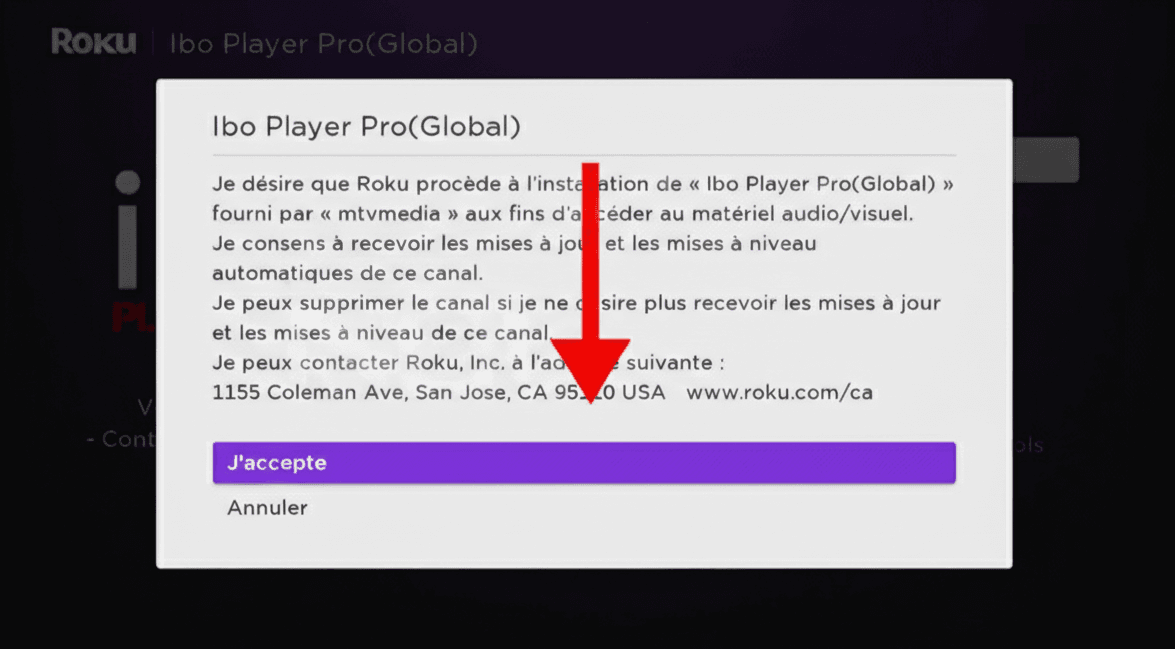
- 7
Part 2 — Install Ibo Player Pro
Open the app
Once installed, click Go to channel to open Ibo Player Pro directly.
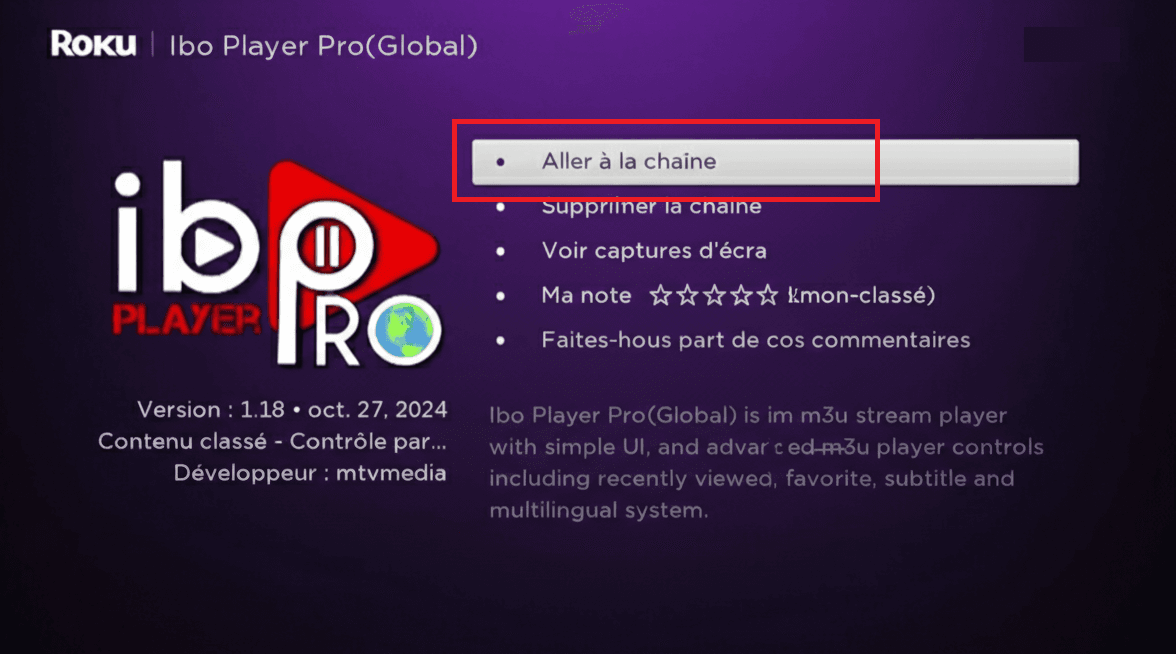
- 8
Part 3 — Activation
Note your MAC Address & Device Key
On first launch, Ibo Player Pro shows your MAC Address and Device Key — note them (a photo works). Then on the Ibo web portal, enter the MAC + Device Key and add your playlist (M3U or Xtream Codes). Need help? Contact our support.
Careful: Ibo Player Pro is a third-party app with its own one-time license fee paid to Ibo — it is not included in your subscription.
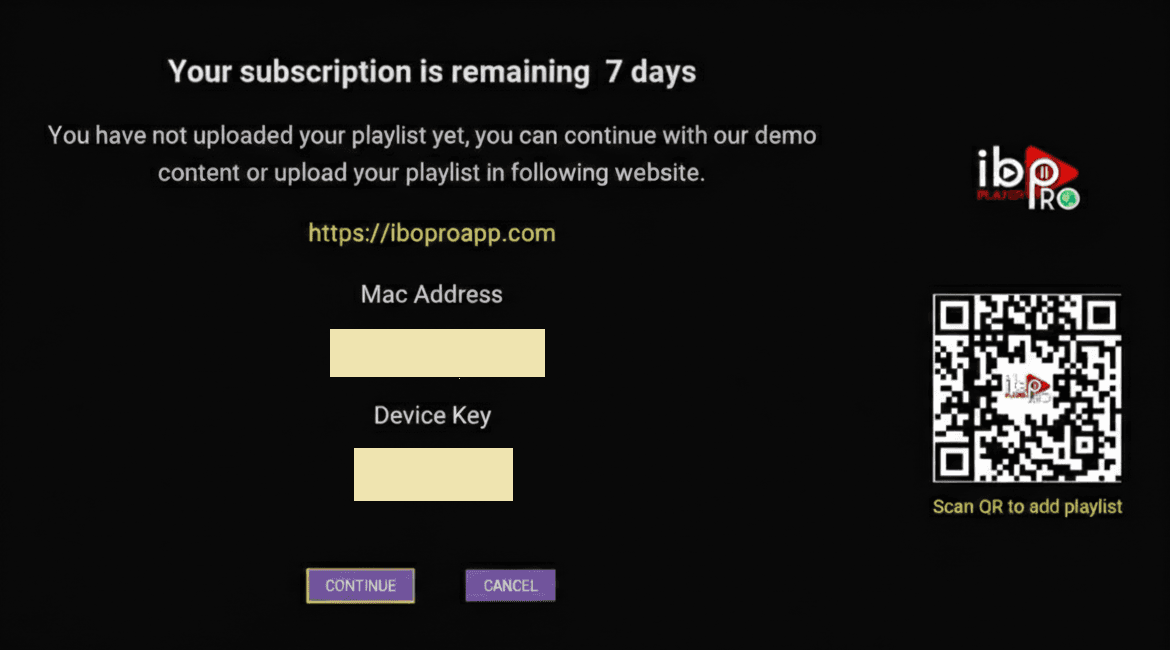
- 9
All set
Ibo Player Pro is installed on your Roku / Hisense / TCL TV. Once activation completes, your full channel list will load — enjoy!
Stuck?
If the app installs but playback stutters, that's usually connection- or device-related rather than a problem with the channel — work through ourbuffering fixes guide. For anything else, contact support.
Setting up a different device? See all setup guides.